Your first ten minutes
1 · Home. You land on Home. It greets you, tells you whether the market is open, and shows a card for every page in the platform. Clicking a card opens that page. The ✓ in a card's corner means the page is in your sidebar; click it to add or remove the page. You can also drag a card straight onto the sidebar.
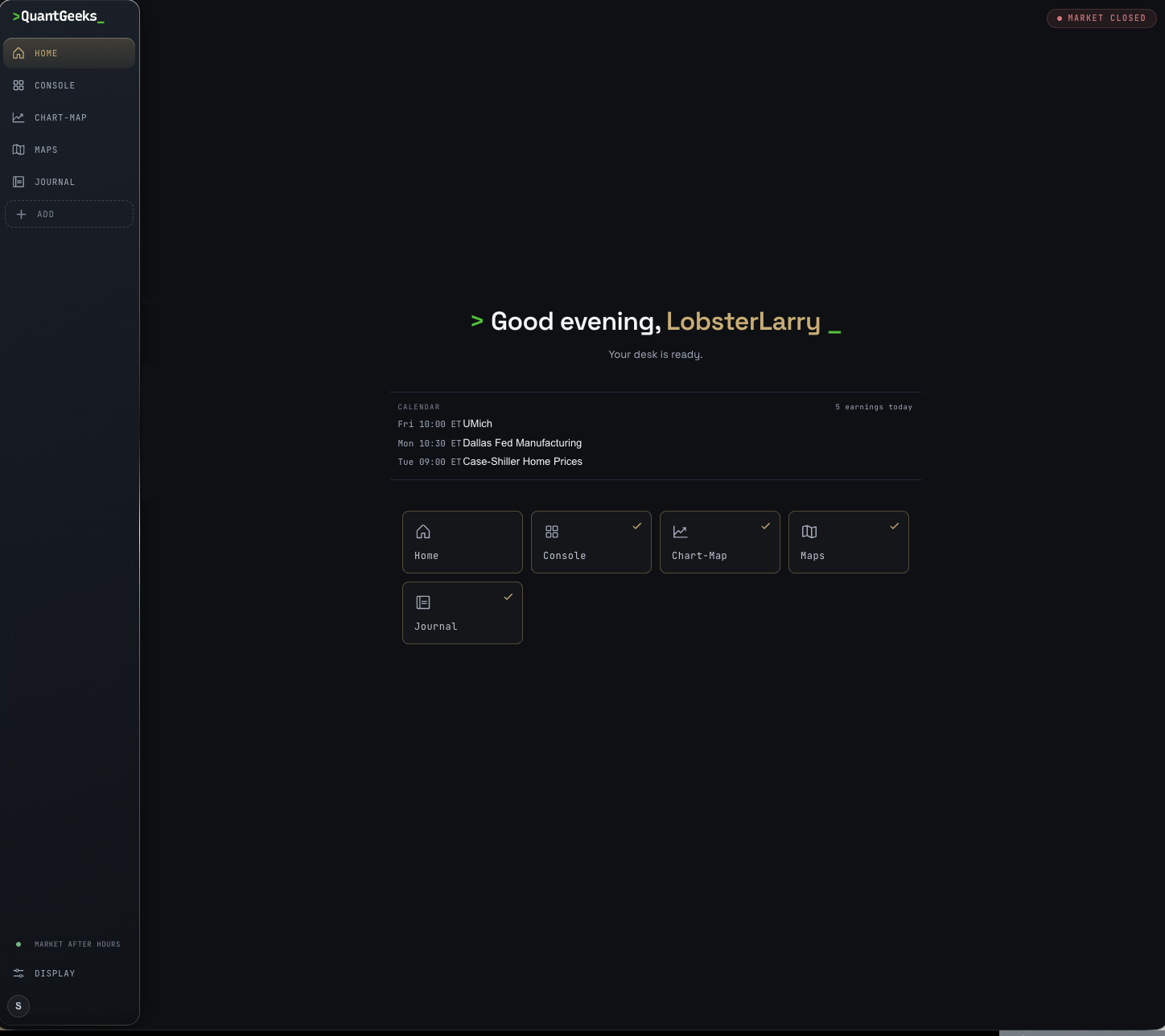
2 · The sidebar. The dark strip on the left is your navigation. Top to bottom:
| # | Item | What it does |
|---|---|---|
| 1 | Home | Always first; can't be moved or removed |
| 2 | Console | Whatever you make it — the console you build, widget by widget |
| 3 | Chart-Map | Chart beside a node ladder or bubble map, in one view, with its own dedicated GEX view |
| 4 | Maps | One ticker at a time: its strikes across the coming expirations, one column per session |
| 5 | Journal | Your trade log and P&L |
| 6 | Any widget you add | A widget can live in the sidebar too and opens full screen |
| 7 | + Add | Add a page or a widget to the sidebar |
| 8 | Feed dot | Green + CONSOLE LIVE when connected; otherwise the market state |
| 9 | Settings | Palette, theme, text size, sounds (see 1.6) |
| 10 | Avatar | Your account menu: display name, name color, billing, sign-in methods, sign out |
Console, Chart-Map, Maps and Journal are all built from the same widgets you'll meet in track 02; the pages are layouts with a purpose. The sidebar hides a page you haven't added and widens when you hover over it.
3 · Open the console. Click Console. You get the Default layout — nine widgets, enough to trade from. Don't try to read all of it. For now, notice three things:
Each of those has its own article in track 02. You don't need them yet.
4 · Pick your index. Top right of the console bar is a small purple ▲ followed by SPX · SPY · QQQ and a helix icon. Click an index and every widget carrying the same purple ▲ switches to it. The helix means all three at once. Widgets that always show all three books, like the ladders, don't change. The selection goes back to SPX when you reload the page.
5 · Move something. Grab a widget anywhere on its body — not on a button, a text field or a chart — and drag it. Drag any edge or any of the four corners to resize. The small three-dot tab at the top center of the widget is not a resize handle: click it and the widget's controls open. Nothing breaks. When you like what you've got, open the layout picker (the name in the console bar, DEFAULT) and choose New layout from current. That's the whole layout system, and track 01 goes through every control.
6 · Set your time. Bottom right, the clocks widget shows New York time and your local time. Everything on the console is stamped in Eastern Time (ET) because that's when the market opens and closes. If you're not in New York, you'll want both.
That's it. You can trade the console from here. Track 01 explains every control; track 02 explains every widget; track 03 explains what the numbers mean.